 Web Highlighter
How to Highlight Text on Any Website in Chrome
Learn how to highlight text on any website in Chrome using colors and keyboard shortcuts, with a free website highlighter that saves what you mark.
When you read something on paper, you can pick up a pen and mark the line that matters. On a web page, there's no built-in equivalent. You can select text, but the selection disappears the moment you click somewhere else, and nothing is kept.
To highlight text on a website and have it stay there, you need a website highlighter: a browser extension that marks the text on the page and remembers it. This guide shows how to do that in Chrome with Web Highlighter, a free extension, and how to use colors and keyboard shortcuts so your highlights are useful later.
What you need
- Google Chrome on a computer. Chrome extensions run in the desktop version of Chrome, not in the Chrome app on phones.
- The Web Highlighter extension. It's free, and you don't need to create an account.
How to highlight text on a website in Chrome
Install Web Highlighter
Open the Web Highlighter listing on the Chrome Web Store and select Add to Chrome. Chrome asks you to confirm, and the extension is ready to use straight away.
Open the page you want to mark up
Go to any ordinary web page: an article, a blog post, documentation, a Wikipedia entry, or a reference page. There's nothing to switch on first.
Select the text
Click and drag over the passage you want to keep, the same way you would to copy it. When you let go, a button with a color palette appears next to your selection.
Pick a color
Choose a color from the palette. The text is highlighted on the page and saved at the same moment, so there's no separate save step.
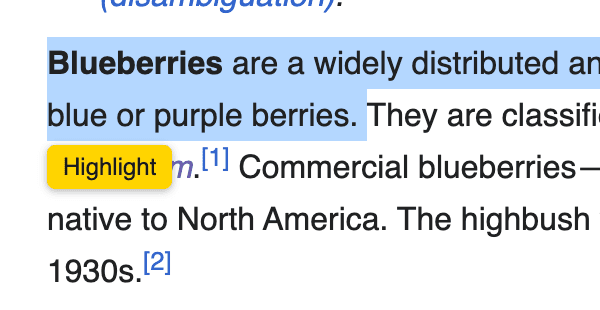
Highlights in different colors, with the color palette open
That's all it takes. The highlight stays on the page, and it's added to your personal highlight library in the browser.
Highlight faster with keyboard shortcuts
If you highlight a lot, opening the palette for every passage gets slow. Web Highlighter has keyboard shortcuts for this: select the text, then press Alt + 1 through Alt + 5 to highlight it in one step.
The numbers follow the palette from left to right:
| Shortcut | Color |
|---|---|
| Alt + 1 | Yellow |
| Alt + 2 | Green |
| Alt + 3 | Blue |
| Alt + 4 | Red |
| Alt + 5 | Purple |
The shortcuts are the same on a Mac: use the Alt key, which is labeled Option on some keyboards. Because each number is a different color, you can keep your hands on the keyboard while you read and still sort what you mark.
Use colors with a purpose
Multiple colors are only useful if each one means something. Before you start, decide on a simple scheme and stick to it. For example:
| Color | Use it for |
|---|---|
| Yellow | Main points and key facts |
| Green | Definitions or steps to follow |
| Blue | Quotes you might cite later |
This is just an example. The colors don't do anything different from each other in the extension. The point is that when you look back at a page, you can tell at a glance what kind of information each highlight is.
Three or four colors is usually enough. With five, it's easy to forget which one you meant.
Tips for highlighting text you'll actually use
Highlighting is quick, which makes it easy to overdo. A page that's half highlighted is no easier to review than one with no highlights at all. A few habits help:
- Highlight sentences, not paragraphs. Mark the line that states the point, not the whole block around it.
- Include the distinctive words. If you'll search for this later, make sure the highlight contains the term you'll remember, such as a product name, a figure, or an unusual phrase.
- Highlight on the second read. On long articles, skim first, then go back and mark what still seems important.
- Leave out what you can find again easily. Headings and the page title are already saved alongside your highlight, so there's no need to highlight them.
What happens after you highlight
Every highlight is saved automatically to a library inside the extension. Each one keeps the title and website of the page it came from, plus a link back to that page.
When you return to a page you've highlighted, your highlights are still marked where you left them. You can read the article again and see straight away which parts you thought were important.
If you change your mind about a highlight, click it on the page and delete it from the popover that appears.
Your highlights are stored locally in your browser on your device, so they don't sync to other computers. Software Sage LLC, the company that makes Web Highlighter, can't see them, and your data isn't sold.
For a full walkthrough of saving highlights and where they're stored, see how to save highlighted text from a web page. To get back to a passage weeks later, see how to find and return to your highlighted text.
Pages where you can't highlight
Web Highlighter works on ordinary web pages. Chrome blocks all extensions from running on some of its own pages, so you can't highlight on:
- Chrome's internal pages, such as settings (addresses that start with
chrome://) - The Chrome Web Store
Highlighting also doesn't work on PDFs opened in Chrome. Pages built in unusual ways may behave differently too.
Frequently asked questions
Can I highlight text on a website without an extension?
Not in a way that's saved. Chrome's Copy link to highlight option creates a link that highlights a passage when the link is opened, but Chrome doesn't keep a list of those passages and they don't stay on the page.
Is there a free website highlighter for Chrome?
Yes. Web Highlighter is free to install from the Chrome Web Store and works without an account.
Do highlights stay after I close the tab?
Yes. Highlights are saved in your browser, so they're still there when you open the page again.
Can other people see my highlights?
No. Highlights are stored locally in your own browser. They don't change the website itself, and other visitors don't see them.
Can I use more than one color?
Yes. Pick a color from the palette when you highlight, or use Alt + 1 through 5 to apply one with the keyboard.
Start highlighting
If you want to highlight text on websites the way you would in a book, the setup takes about a minute. Add Web Highlighter to Chrome, open the next article you read, and select a passage. To see everything the extension does first, visit the Web Highlighter homepage.