 Web Highlighter
How to Save Highlighted Text From a Web Page in Chrome
Learn how to highlight text on any web page in Chrome, save those highlights locally in your browser, and find them again later with Web Highlighter.
You read something useful on a web page, and a week later you can't remember where it was. Bookmarks save the whole page, not the sentence you cared about, and pasting quotes into a notes app means switching windows every time and losing track of where each one came from.
This guide shows how to highlight text on any web page in Chrome, keep those highlights saved in your browser, and find them again later using Web Highlighter, a free Chrome extension.
What Chrome can and can't do on its own
Chrome has a built-in way to point to a passage. If you select text and right-click, the Copy link to highlight option copies a link to the page with the selected text added to the end of the address (a "text fragment"). When you or anyone else opens that link, Chrome scrolls to the passage and highlights it, as long as that text is still on the page.
That's handy for sharing a specific quote, but it's a link, not a collection. Chrome doesn't keep a list of the passages you've copied links to, so there's nowhere to browse or search them later. If you want to come back to them, you have to save each link yourself, in a bookmark, a document, or a notes app.
To keep everything you highlight in one place that you can browse and search later, you need an extension that saves your highlights for you. The steps below use Web Highlighter.
How to save highlighted text from a web page
Install Web Highlighter
Open the Web Highlighter listing on the Chrome Web Store and select Add to Chrome. Chrome will ask you to confirm. Once it's installed, you can start highlighting right away. It's free and you don't need an account.
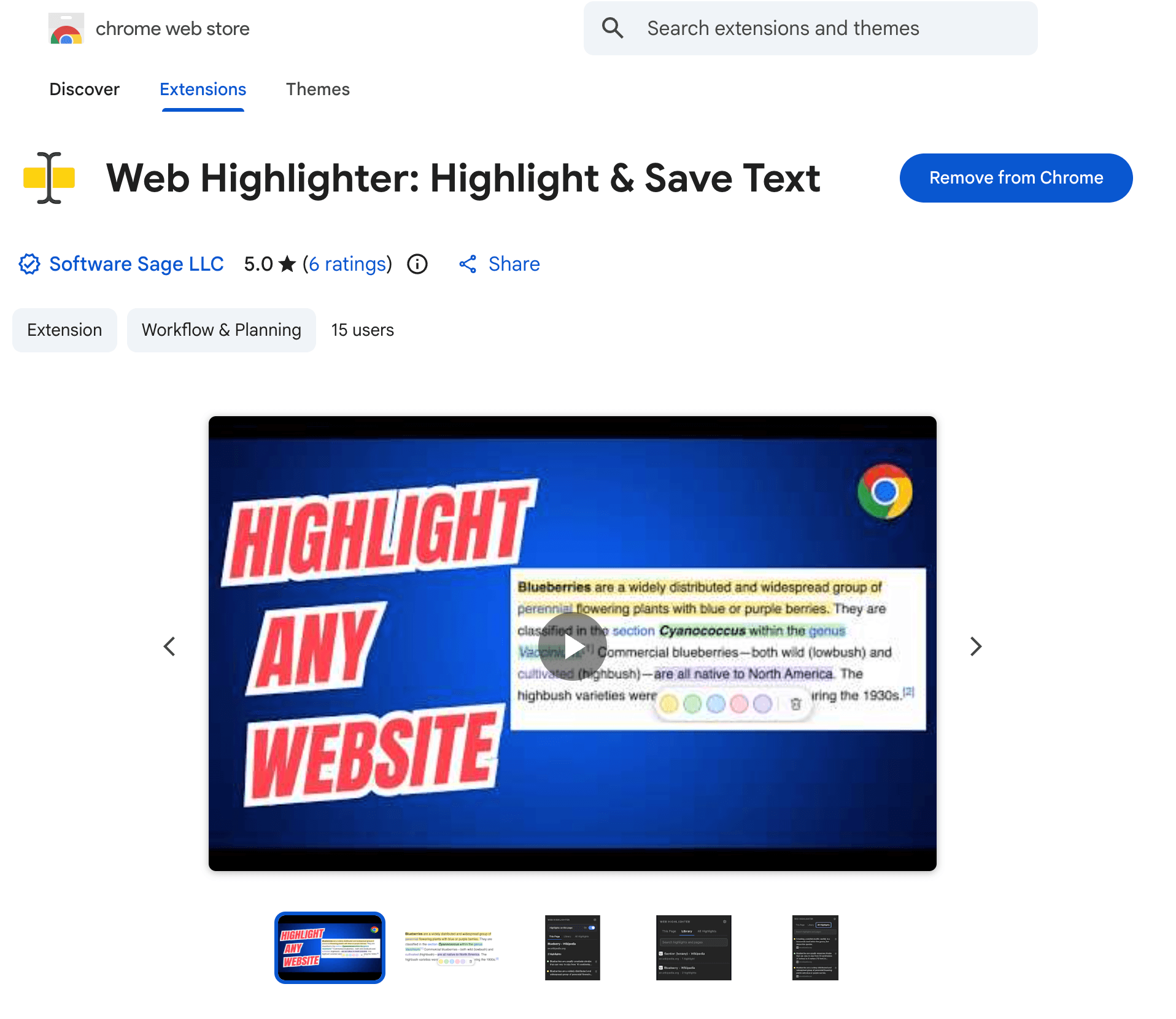
Web Highlighter on the Chrome Web Store Select the text you want to keep
Go to any ordinary web page, such as an article, documentation, or a reference page, and select a passage the way you normally would, by clicking and dragging over it.
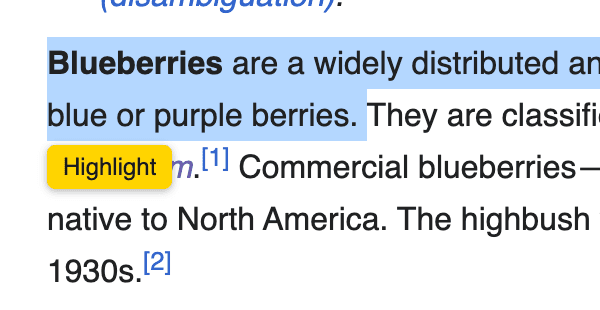
When you finish selecting, a button with a color palette appears next to your selection.
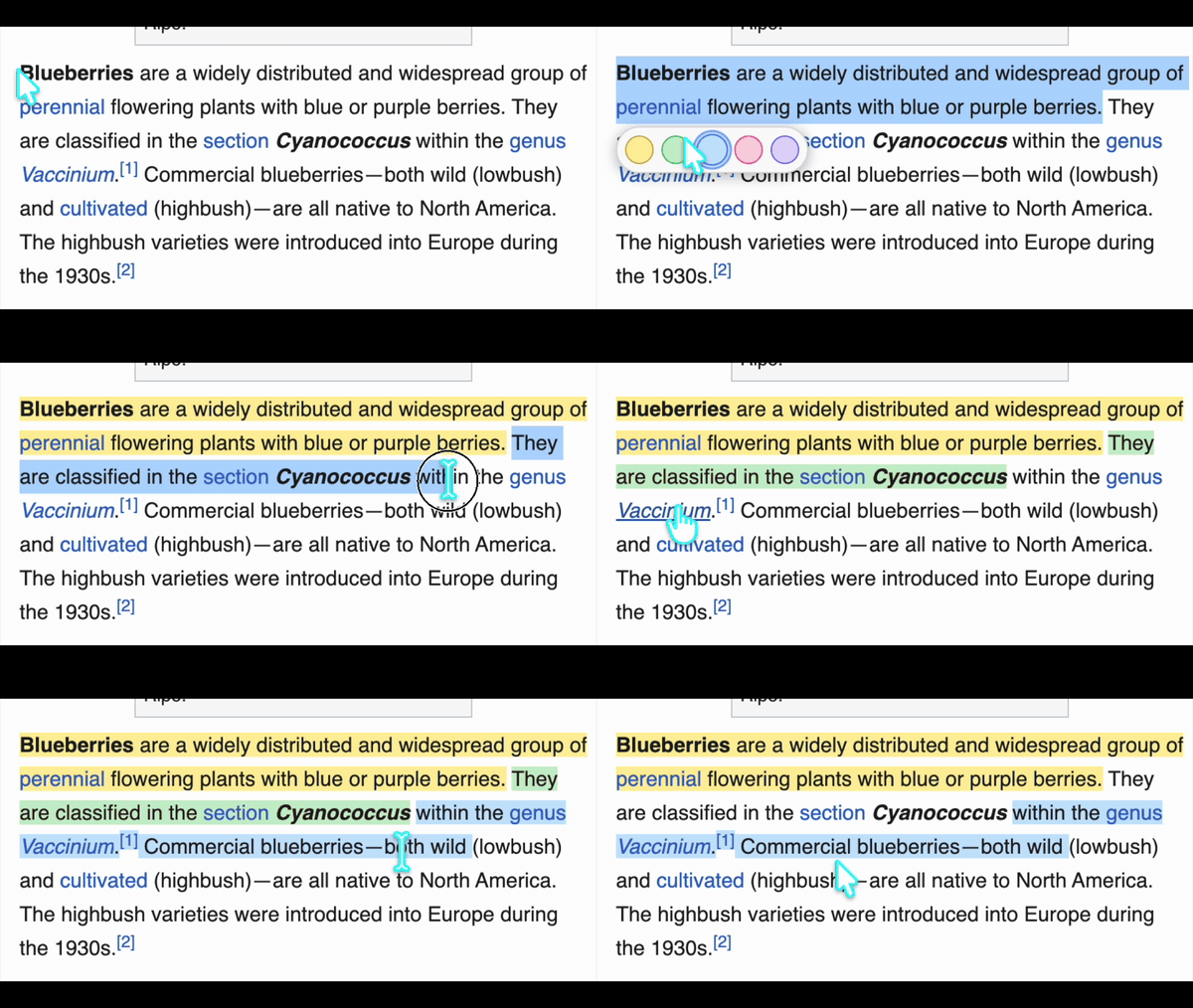
Selecting text and highlighting it with Web Highlighter Choose a highlight color
Pick a color from the palette. The passage is highlighted on the page and saved at the same time. You don't need to press a separate save button.
You can use different colors to separate different kinds of information, for example one color for key facts and another for quotes you might cite.
Highlights in different colors, with the color palette open Or use a keyboard shortcut
If you highlight a lot, keyboard shortcuts are faster. Select text and press Alt + 1 through Alt + 5 to highlight it without opening the palette.
Where your highlights are saved
Your highlights are stored locally in your browser on your device, not on our servers. That means:
- No account is needed. You can install the extension and start highlighting without signing up or signing in.
- Your highlights stay private. Software Sage LLC, the company behind Web Highlighter, does not have access to the highlights you save.
- Your data is not sold.
For the full details, see the privacy policy.
How to find your saved highlights later
Saving highlights is only half of it. You also need to find them again. Web Highlighter gives you a few ways to do that.
Open and search your highlight library
Open the extension from the Chrome toolbar to see your library. It lists everything you've highlighted, each with the title and website of the page it came from, so you can look back through your saved passages without digging through your browser history.
If you remember a word or phrase but not where you read it, type it into the search box to find the highlight.
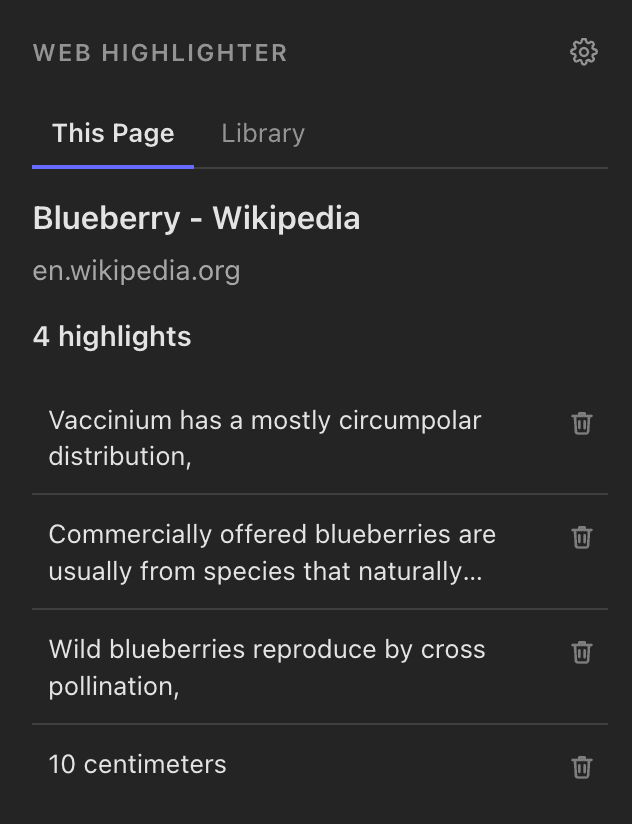
Go back to the original page
Each saved highlight keeps a link to the page it came from. Open it to read the passage in context again. When you return to a page you've highlighted, your highlights are still marked where you left them.
Delete highlights you no longer need
You can delete a highlight when it's no longer useful, which keeps your library focused on what matters.
Pages where highlighting won't work
Web Highlighter works on ordinary web pages you read in Chrome. Chrome doesn't let extensions run on some of its own pages, such as the settings pages (addresses starting with chrome://) and the Chrome Web Store, so you can't highlight there. Pages built in unusual ways may also behave differently.
Frequently asked questions
Can I save highlighted text from a web page without copying and pasting?
Yes. With Web Highlighter, highlighting a passage saves it. Select the text, choose a color, and it's stored in your library along with a link back to the page.
Do my highlights stay on the page when I come back?
Yes. When you revisit a page you've highlighted, your highlights are still marked on it.
Is Web Highlighter free?
Yes. It's free to install from the Chrome Web Store, and the core features work without an account.
Where does Web Highlighter store my highlights?
Locally in your browser on your device. Software Sage LLC can't see them, and your data is not sold.
Start saving what you read
If you often find yourself trying to remember where you read something, saving highlights as you go saves you from searching for it later. Install Web Highlighter, select a passage, pick a color, and it will be in your library the next time you need it.